SETTING UP SSO - What is the process?
Schedule a Kick off call with LUMA1 technical team - Email: success@luma1.com
Client and LUMA1 confirm if the mapping of groups and supervisors is required as part of the SSO process. If so, additional planning and technical services required.
Groups and Supervisor Administration
The Groups feature in LUMA1 allows administrators to control user access to content. For example, a client can create 3 groups of users. Group 1 can see all content, group 2 can only see content related to sales and group 3 can see content related to safety and skills. The creation of groups is unlimited in LUMA1 and is one of the first activities completed as part of the administration setup.
The supervisor setup allows for a hierarchy of users allowing the supervisor to view reporting activity for those users who are set under their supervision. It also enables the notification features when using LUMA1 automation and certification to provide progress updates to supervisors for members under their supervision.
LEARNER EXPERIENCE WITH SSO
The viewer clicks a link via Client site (e.g., SharePoint or email) to launch LUMA1
SSO Validation Occurs:
If the learner’s browser is already signed into MS, and email address is validated as NAME@CLIENTDOMAIN.COM, then LUMA1 learner portal launches.
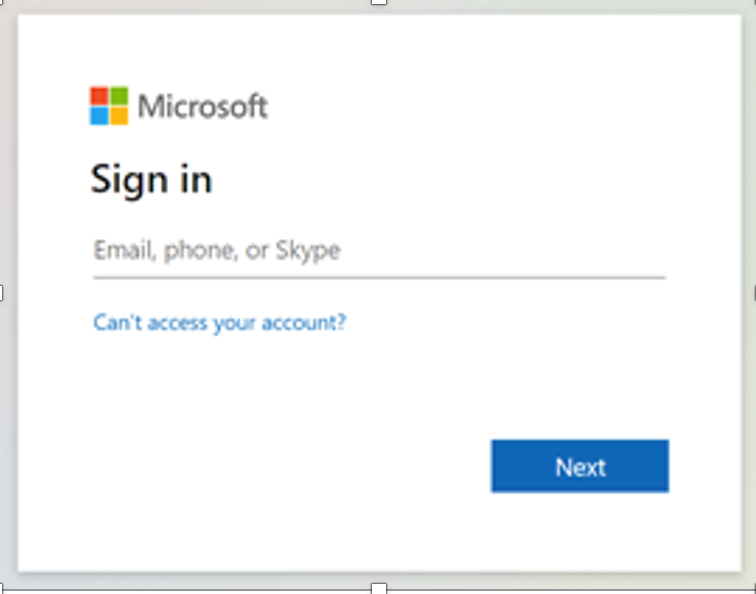
If the viewer’s browser is not logged into their Microsoft account, the Microsoft Sign in prompt will appear.
SETUP
Azure SSO Setup Instructions for LUMA1
1) Register a new application
In the Azure Portal go to Azure Active Directory (Entra) → App registrations → New registration.
Name it (e.g., LUMA1 SSO).
Supported account types: choose what fits your org (most use Single tenant).
Click Register.
2) Configure API permissions
Open your new app → API permissions → Add a permission.
Choose Microsoft Graph → Delegated permissions.
Add
User.Read.Click Grant admin consent for <YourTenant> and confirm. ✅
Why: Many tenants restrict end-user consent; admin consent ensures reliable sign-in.
3) Configure authentication (redirect URI)
Go to Authentication → Platform configurations → Add a platform → Web.
Under Redirect URIs, add:
https://clientname.luma.one/azure/index.php
(Replaceclientnamewith your actual subdomain.)Save.
4) Create a client secret
Go to Certificates & secrets → Client secrets → New client secret.
Add a description and expiry, then Add.
Copy the Secret Value now—you won’t be able to see it again.
Note: We need the Secret Value, not the Secret ID.
5) Send these details to LUMA1
Tenant ID
Application (Client) ID
Client Secret Value (again, the Value, not the ID)
Quick verification (optional)
In API permissions, you should see Microsoft Graph → User.Read (Delegated) with a green check and the label Granted for <YourTenant>.
In Authentication, confirm the exact redirect URI matches your LUMA1 subdomain.
Common pitfalls
Admin consent missing → users see “needs admin approval.”
Fix: click Grant admin consent.Wrong secret → using the Secret ID instead of Value causes token errors.
Redirect mismatch → any typo in the URI will block sign-in (must match exactly).
Please note that if the FQDN part of the authentication URL (clientname.luma.one) ever needs to change, we can accommodate this with appropriate coordination. Just let us know in advance so we can ensure a smooth transition.
NOTE: Basic SSO is available using LUMA1’s standard SSO API. This API is available as an add on feature. Additional technical service work is required to accommodate the Group and Supervisor setup to ensure proper definition and mapping of data.
Was this article helpful?
That’s Great!
Thank you for your feedback
Sorry! We couldn't be helpful
Thank you for your feedback
Feedback sent
We appreciate your effort and will try to fix the article