If you have a PowerPoint that you converted to Video using LUMA1’s PowerPoint import feature, you can edit the individual slides and AI narrations using the Powerpoint edit feature. This feature will also automatically adjust the timing of your slides if you add or reduce the text per slide.
Instructions:
- Open your video that was imported as a PowerPoint.
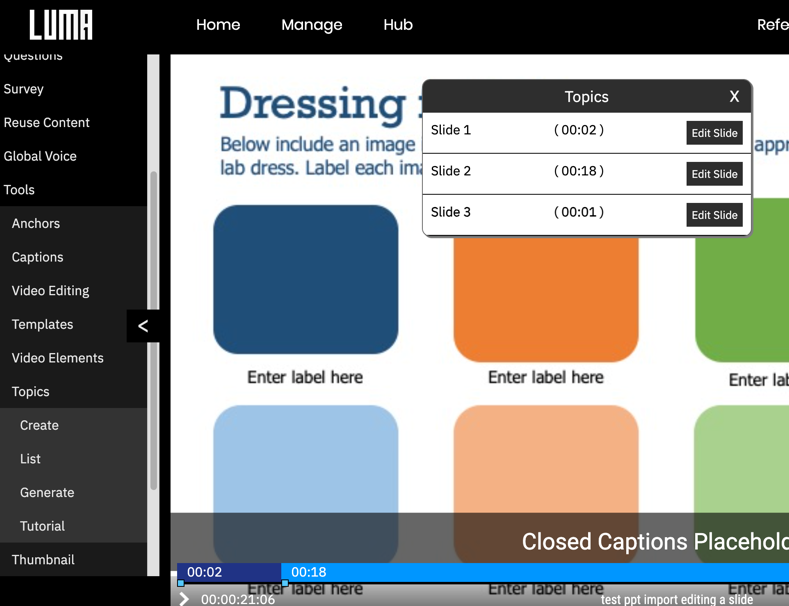
- On the author toolbar, click TOOLS, then TOPICS, then LIST
- Click EDIT SLIDE for the slide you wish to edit.
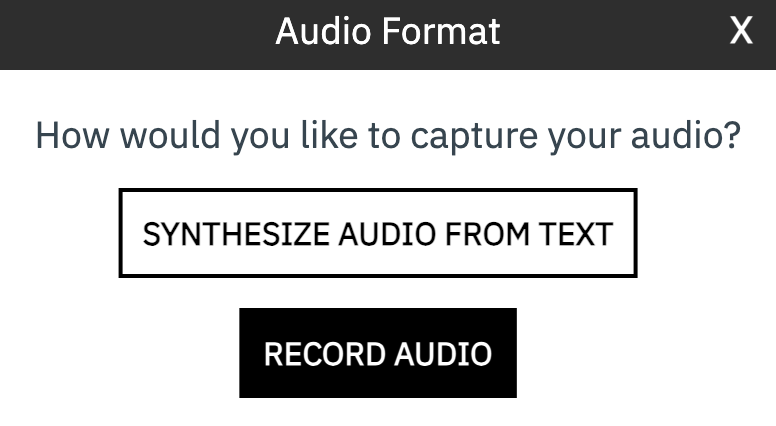
- In the screen that appears, you can choose to Synthesize Audio from Text to or record your own voice.
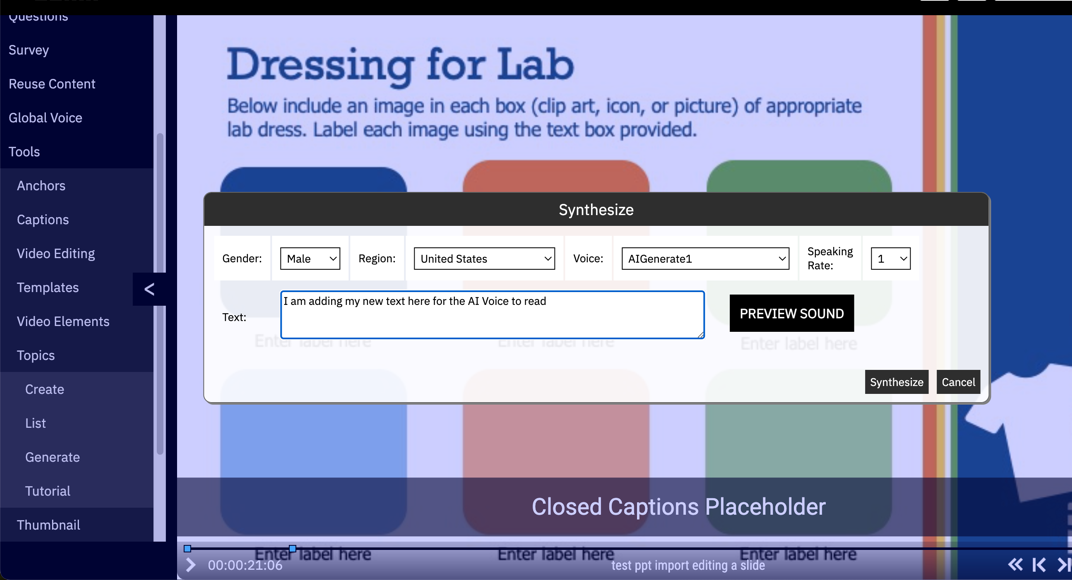
- When you click Synthesize Audio from Text, you can enter your new text to be read by the AI voice in the box provided. Your text does not need to be a similar length to the original as the system will automatically adjust the timing when you finalize your edits and click SAVE.
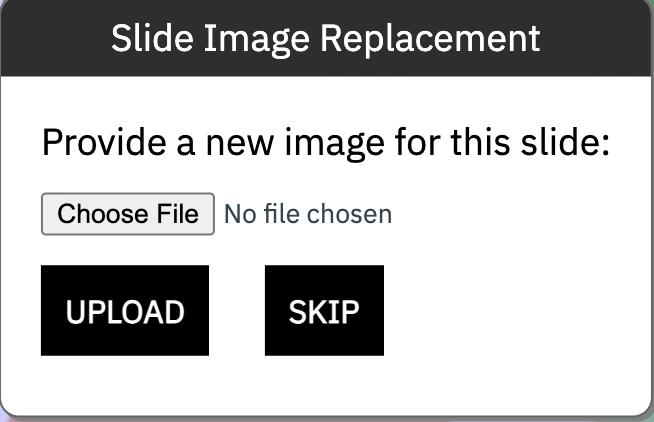
- When you click SAVE for your audio changes, you will then be presented with the option to keep the current slide or replace with a new image.
- Once you complete this step, the system will begin processing your changes and exit you from the video until the process is complete.
Was this article helpful?
That’s Great!
Thank you for your feedback
Sorry! We couldn't be helpful
Thank you for your feedback
Feedback sent
We appreciate your effort and will try to fix the article